16. AI Features
Currently developed AI-related features include: AI Cloud Service, AI Dial
Important
The public version project sent out cannot normally use AI-related functions after compilation. You need to register and activate the relevant functions at iFLYTEK first. Configure 【APPID】【APISecret】【APIKey】 at the corresponding positions.
16.1. AI Cloud Service
Note
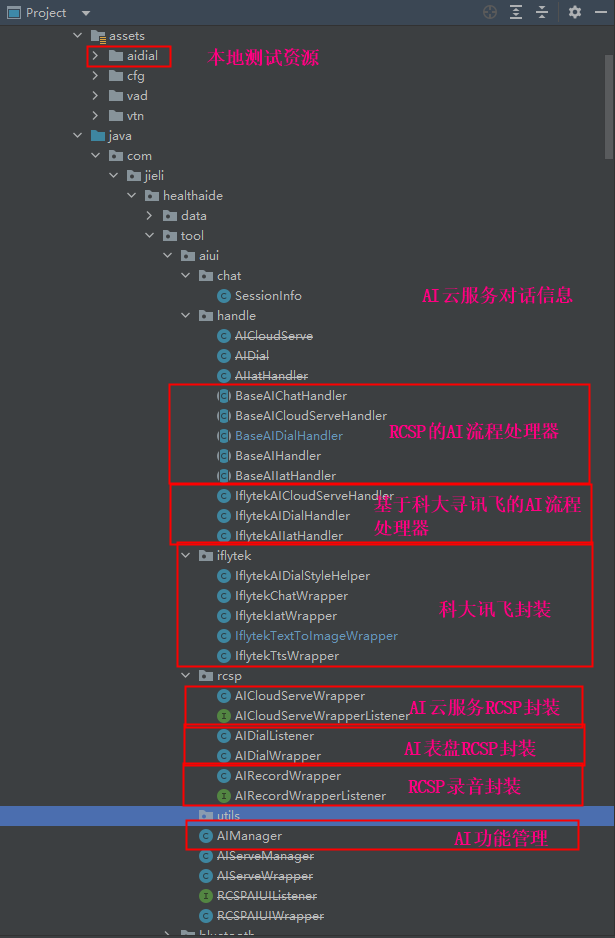
To ensure compatibility with AI Dial function, if the App uses the AI Cloud Service function, you must use the optimized AI Cloud Service function (AIManager) instead of the pre-optimization version (AIServeManager). How to distinguish between pre-optimization and post-optimization AI cloud service functions? The optimized AI cloud service function is integrated within AIManager.class, while the pre-optimization version is implemented separately in AIServeManager.class.
Firmware corresponding feature: 【iFLYTEK AI】
App corresponding feature: 【Device】->【AI Cloud Service】.
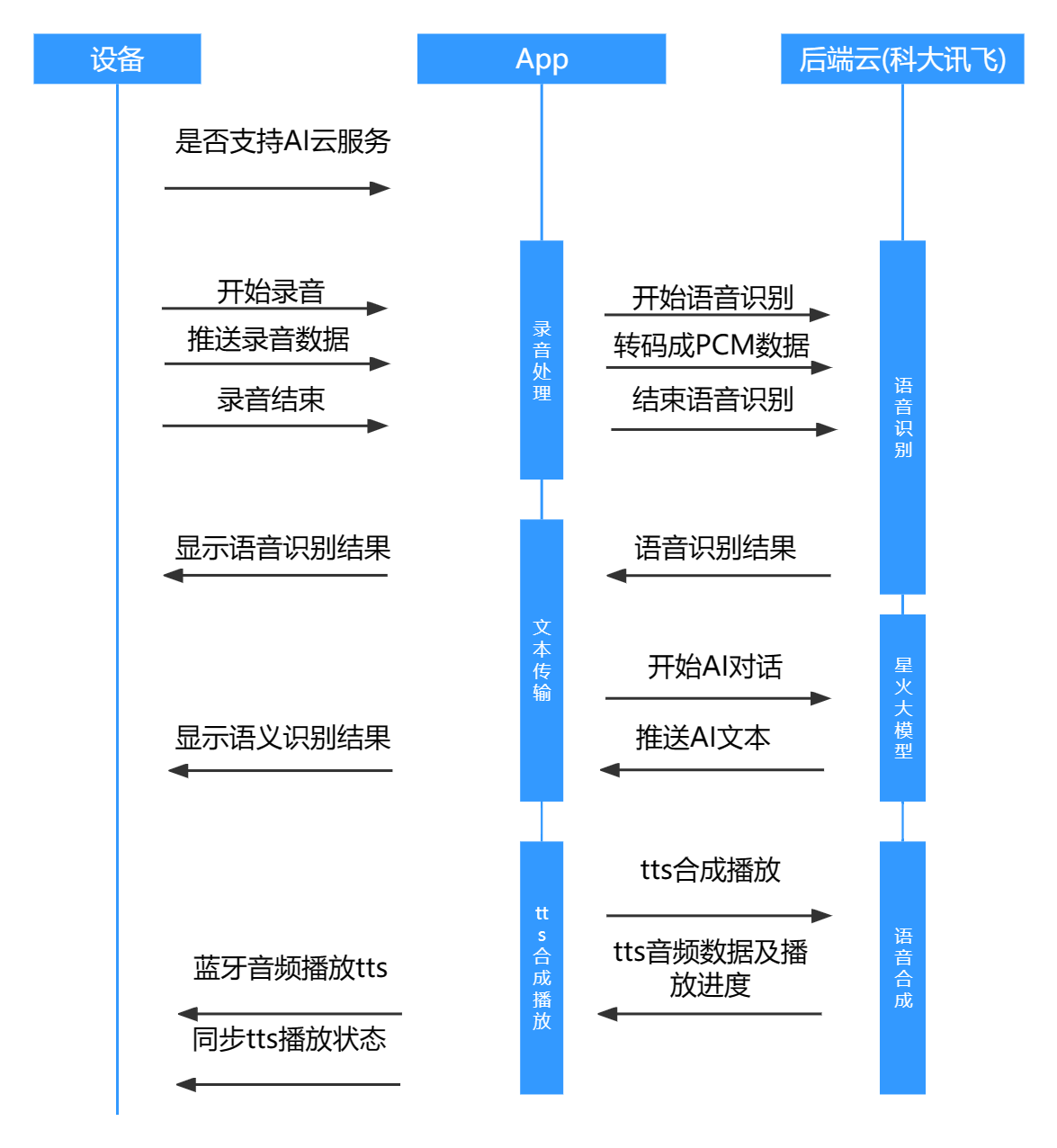
During device initialization, the device tells the App whether AI cloud service functionality is supported.
When the device starts recording, it sends an RCSP command to inform the App to start recording. Then it begins transmitting recording data.
When the device stops recording, it sends an RCSP command to inform the App to stop recording, whether speech recognition results need to be transmitted, whether semantic recognition results need to be transmitted, and whether TTS playback is needed.
After receiving the start recording command, the App converts the received real-time audio data from Opus to PCM format and sends the converted PCM results to the iFLYTEK server. After receiving the stop recording command, the App sends a recording end command to the iFLYTEK server. iFLYTEK first returns speech recognition results, then voice recognition results, followed by semantic recognition results. The App performs TTS conversion based on semantic recognition results.
The App sends voice recognition results, semantic recognition results, and TTS playback status to the device.
16.1.1. Sequence Diagram
16.1.2. iFLYTEK Configuration
If not using iFLYTEK’s SDK but switching to another platform’s AISDK, you can skip this step.
The public HealthAide project distributed will not work properly with AI cloud service functionality after compilation. You need to register and activate 【Spark Cognitive Model - Spark Model V1.5】, 【Speech Recognition】, and 【Speech Synthesis】 functions at iFLYTEK.
Configure 【APPID】【APISecret】【APIKey】 at the corresponding locations in IflytekChatWrapper.class IflytekIatWrapper.class IflytekTtsWrapper.class.
//IflytekChatWrapper.class

public IflytekChatWrapper(Context context) {
    ......
    if (!TextUtils.isEmpty(BuildConfig.IFLYTEK_APP_ID)) {//TODO Need to comment out this line
        //TODO Please apply first on the iFLYTEK platform, fill in the correct appId, appKey, apiSecret. Otherwise, it will crash
        final AiHelper.Params.Builder params = AiHelper.Params.builder()
                .appId("ffffffff"/**APPID**/)
                .apiKey("fffffffffffffffffffffffffffffff"/**APIKey**/)
                .apiSecret("ffffffffffffffffffffffffffffffff"/**APISecret**/)
                .workDir(rootFile.getPath());
        ......
    }
}
//IflytekIatWrapper.class

public IflytekIatWrapper(Context context) {
    //Enable log
    Setting.setShowLog(true);
    //Initialize and create speech configuration object
    if (!TextUtils.isEmpty(BuildConfig.IFLYTEK_APP_ID)) {//TODO Need to comment out this line
        //TODO Please apply first on the iFLYTEK platform, fill in the correct appId. Otherwise, it will crash
        SpeechUtility.createUtility(context, SpeechConstant.APPID + "=" + "ffffffff"/**APPID**/);
    }
    //Initialize recognition without UI recognition object
    mSpeechRecognizer = SpeechRecognizer.createRecognizer(context, mIatInitListener);
}
//IflytekTtsWrapper.class

public IflytekTtsWrapper(Context context) {
    //Enable log
    Setting.setShowLog(true);
    //Initialize and create speech configuration object
    if (!TextUtils.isEmpty(BuildConfig.IFLYTEK_APP_ID)) {//TODO Need to comment out this line
        //TODO Please apply first on the iFLYTEK platform, fill in the correct appId. Otherwise, it will crash
        SpeechUtility.createUtility(context, SpeechConstant.APPID + "=" + "ffffffff"/**APPID**/);
    }
    // Initialize synthesis object
    mTts = SpeechSynthesizer.createSynthesizer(context, mTtsInitListener);
}
16.1.3. Usage Example
/**
* @ClassName: AICloudServerDemo
* @Description: AI Cloud Service Function Example
* @Author: ZhangHuanMing
* @CreateDate: 2023/12/28 11:23
*/
public class AICloudServerDemo {
    private AIManager mAIManager;
    private final Observer<SessionInfo> mRecordStatusObserver = sessionInfo -> {
        if (sessionInfo != null) {
            switch (sessionInfo.getStatus()) {
                case SessionInfo.STATE_RECORD_START://Start recording
                case SessionInfo.STATE_RECORDING://Recording
                case SessionInfo.STATE_IDLE://Default state
                case SessionInfo.STATE_RECORD_END://Recording ended
                case SessionInfo.STATE_IAT_END://Voice recognition ended
                case SessionInfo.STATE_NLP_END://Semantic recognition ended
                case SessionInfo.STATE_FAIL://Exception
                    //Get current conversation message
                    List<AICloudMessage>  aiCloudMessageList=  sessionInfo.getSessionMessageList();
                    for (AICloudMessage aiCloudMessage:aiCloudMessageList) {
                        //Get the type of dialogue. 0; user, 1; AI
                        int itemType =  aiCloudMessage.getItemType();
                        //Get the message data entity
                        AICloudMessageEntity entity =  aiCloudMessage.getEntity();
                        entity.getAiCloudState();//Speech recognition status for this message
                        entity.getDevMac();//Device mac
                        entity.getId();//Unique id of the message
                        entity.getRevId();//Id of the reply message corresponding to the message
                        entity.getRole();//Message role, 0; user, 1; AI
                        entity.getText();//Message text
                        entity.getTime();//Message time
                        entity.getUid();//Unique id of the user
                    }
                    break;
            }
        }
    };
    /**
    * Initialize AIManager
    */
    @Test
    public void init(Context context){
        //Step1. Initialization
        AIManager.init(context, WatchManager.getInstance());
        mAIManager = AIManager.getInstance();
        //Step2. Monitor conversation status. Choose observeForever or observe based on usage scenario
        mAIManager.getAICloudServe().currentSessionMessageMLD.observeForever(mRecordStatusObserver);
    }

    /**
    * Get recording start time
    */
    @Test
    public long getStartRecordTime(){
        return mAIManager.getAICloudServe().getStartRecordTime();
    }


    /**
    * Stop speech synthesis
    */
    @Test
    public void stopTTS(){
        mAIManager.getAICloudServe().stopTTS();
    }
}
16.1.4. Integrating Other AI Platforms
Please refer to IflytekAICloudServeHandler.class, IflytekAIIatHandler.class calling methods of BaseAICloudServeHandler, BaseAIIatHandler
//BaseAIIatHandler.class
//Basic speech recognition processing
public abstract class BaseAIIatHandler extends BaseAIHandler {
    /**
    * Need to implement
    */
    //Device disconnect
    abstract void onDeviceDisconnect();
    // Start recording
    abstract void onRecordStart();
    // Receive recording data (decoded to PCM format)
    abstract void onRecordData(byte[] recordData);
    // Recording end
    abstract void onRecordStop();
    // Recording cancel
    abstract void onRecordCancel();


    /**
    * Need to call
    */
    //Speech recognition exception flag
    void setRecognizerFail(boolean recognizerFail);
    //Network exception flag
    void setNetworkWrong(boolean networkWrong);
    //Recognition result
    void onRecognizerResult(String iatString);
    //Recognition failure
    void onRecognizerFail();
}
//BaseAICloudServeHandler.class
//AI cloud service processing flow
public abstract class BaseAICloudServeHandler extends BaseAIChatHandler {
    /**
    * Need to implement
    */
    /**
    * Stop TTS synthesis playback
    */
    abstract void onStopTTS();

    /**
    * Start TTS synthesis playback
    */
    abstract void onStartTTS(String ttsText);

    /**
    * Start conversation
    *
    * @param userText User text
    */
    abstract void onStartChat(String userText);

    /**
    * Handle conversation status
    */
    abstract void onHandlerSessionStatus(int status);

    /**
    * Need to call
    */
    //Add semantic text conversation content
    protected void addNlpTTSMessage(String nlpText);
    //Start semantic conversation
    protected void onStartChat();
    //TTS playback failed
    protected void onPlayTTSFail();
    //TTS playback ended
    protected void onPlayTTSStop();
}
16.1.5. Whether AI Cloud Service is Supported
How to determine if the device supports AI cloud service functionality
WatchConfigure configure  mWatchManager.getWatchConfigure(device);
boolean isSupportAICloud = configure == null || configure.getFunctionOption() != null && configure.getFunctionOption().isSupportAICloud();;
16.2. AI Dial
Firmware corresponding feature: 【AI Dial】
App corresponding feature: 【Device】->【AI Dial】.
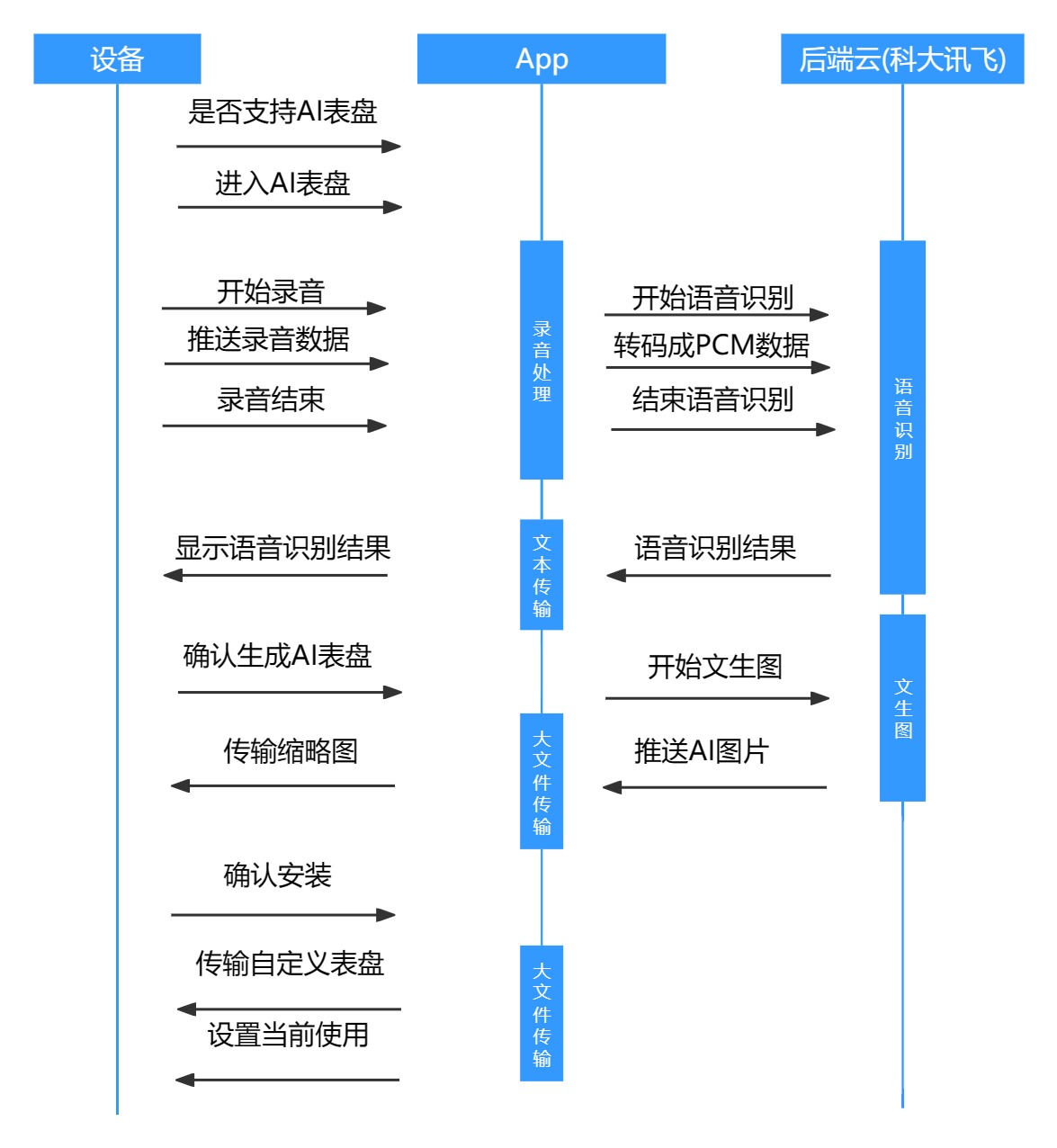
During device initialization, the device informs the App whether AI dial functionality is supported.
When the device enters the AI dial interface, it sends an RCSP command to inform the App that the AI dial function is being used.
When the device starts recording, it sends an RCSP command to inform the App to start recording. Then it begins transmitting recording data.
When the device stops recording, it sends an RCSP command to inform the App to stop recording.
After receiving the start recording command, the App converts the received real-time audio data from Opus to PCM format and sends the converted PCM results to the iFLYTEK server. After receiving the stop recording command, the App sends a recording end command to the iFLYTEK server. iFLYTEK first returns speech recognition results, then voice recognition results.
The App synchronizes voice recognition results to the device, which displays the speech recognition results. The user confirms generating the AI dial.
The App calls the text-to-image interface to generate images, crops them according to screen size to create thumbnails sent to the device. The user confirms installing the dial.
The App generates a custom dial based on the image and installs it on the device.
16.2.1. Sequence Diagram
16.2.2. iFLYTEK Configuration
If not using iFLYTEK’s SDK but switching to another platform’s AISDK, you can skip this step.**
The public HealthAide project distributed will not work properly with AI dial functionality after compilation. You need to register and activate 【Spark Cognitive Model - Image Generation】, 【Speech Recognition】, and 【Speech Synthesis】 functions at iFLYTEK.
Configure 【APPID】【APISecret】【APIKey】 at the corresponding locations in IflytekChatWrapper.class IflytekIatWrapper.class IflytekTextToImageWrapper.class.
//IflytekChatWrapper.class

public IflytekChatWrapper(Context context) {
    ......
    if (!TextUtils.isEmpty(BuildConfig.IFLYTEK_APP_ID)) {//TODO Need to comment out this line
        //TODO Please apply first on the iFLYTEK platform, fill in the correct appId, appKey, apiSecret. Otherwise, it will crash
        final AiHelper.Params.Builder params = AiHelper.Params.builder()
                .appId("ffffffff"/**APPID**/)
                .apiKey("fffffffffffffffffffffffffffffff"/**APIKey**/)
                .apiSecret("ffffffffffffffffffffffffffffffff"/**APISecret**/)
                .workDir(rootFile.getPath());
        ......
    }
}
//IflytekIatWrapper.class

public IflytekIatWrapper(Context context) {
    //Enable log
    Setting.setShowLog(true);
    //Initialize and create speech configuration object
    if (!TextUtils.isEmpty(BuildConfig.IFLYTEK_APP_ID)) {//TODO Need to comment out this line
        //TODO Please apply first on the iFLYTEK platform, fill in the correct appId. Otherwise, it will crash
        SpeechUtility.createUtility(context, SpeechConstant.APPID + "=" + "ffffffff"/**APPID**/);
    }
    //Initialize recognition without UI recognition object
    mSpeechRecognizer = SpeechRecognizer.createRecognizer(context, mIatInitListener);
}
//IflytekTextToImageWrapper.class

public void startChat(String usrInputText, TextToImageCallback callback) throws Exception {
        String appid = "ffffffff";/**APPID**/
        String apiSecret = "fffffffffffffffffffffffffffffff";/**APIKey**/
        String apiKey = "ffffffffffffffffffffffffffffffff";/**APISecret**/
        ......
}
16.2.3. Usage Example
/**
* @ClassName: AIDialDemo
* @Description: AI Dial Function Example
* @Author: ZhangHuanMing
* @CreateDate: 2023/12/28 11:39
*/
public class AIDialDemo {
    private AIManager mAIManager;
    /**
    * Initialize AIManager
    */
    @Test
    public void init(Context context){
        //Step1. Initialization
        AIManager.init(context, WatchManager.getInstance());
        mAIManager = AIManager.getInstance();
    }

    /**
    * Set AI Dial Style
    */
    @Test
    public void setStyle(String style){
        mAIManager.getAIDial().setCurrentAIDialStyle(style);
    }
}
16.2.4. Integrating Other AI Platforms
Please refer to IflytekAIDialHandler.class, IflytekAIIatHandler.class calling methods of BaseAIDialHandler, BaseAIIatHandler
//BaseAIIatHandler.class
//Basic speech recognition processing
public abstract class BaseAIIatHandler extends BaseAIHandler {
    /**
    * Need to implement
    */
    //Device disconnect
    abstract void onDeviceDisconnect();
    // Start recording
    abstract void onRecordStart();
    // Receive recording data (decoded to PCM format)
    abstract void onRecordData(byte[] recordData);
    // Recording end
    abstract void onRecordStop();
    // Recording cancel
    abstract void onRecordCancel();


    /**
    * Need to call
    */
    //Speech recognition exception flag
    void setRecognizerFail(boolean recognizerFail);
    //Network exception flag
    void setNetworkWrong(boolean networkWrong);
    //Recognition result
    void onRecognizerResult(String iatString);
    //Recognition failure
    void onRecognizerFail();
}
//BaseAIDialHandler.class
//AI dial processing flow
public abstract class BaseAIDialHandler extends BaseAIChatHandler {
    /**
    * Start conversation (text-to-image), need to implement
    */
    abstract void onStartAIChat(String userText);
    /**
    * Process AI image (text-to-image), need to call
    * @param srcImagePath Local image path
    */
    protected void handleAIChatImage(String srcImagePath);
}
16.2.5. Whether AI Dial is Supported
How to determine if the device supports AI dial functionality
WatchConfigure configure  mWatchManager.getWatchConfigure(device);
boolean isSupportAIDial = configure == null || configure.getFunctionOption() != null && configure.getFunctionOption().isSupportAIDial();;
16.2.6. Local Testing of AI Dial
During testing, to avoid wasting the server’s text-to-image resources, the AI dial has local testing functionality. When releasing the official version, please disable this.
When opening the App, copy resources from assert/aidial to /Android/data/com.jieli.healthaide/files/aidial. (Select one image from 1 to 10 for AI dial generation)
Disable local testing functionality:
//HealthConstant.class
public class HealthConstant {
    .....
    //Test AI dial functionality
    public final static boolean TEST_AI_DIAL_FUNCTION = false;
    .....
}
16.2.7. AI Dial Thumbnails
Currently, the thumbnail file size for AI dials defaults to 240*240. The device side can push thumbnail size when entering the AI dial interface. To modify the default thumbnail size, please change the thumbHeight and thumbWidth properties in AIDialWrapper.java.
//AIDialWrapper.class
private final OnWatchCallback mWatchCallback = new OnWatchCallback() {
    @Override
    public void onRcspCommand(BluetoothDevice device, CommandBase command) {
        super.onRcspCommand(device, command);
        if (command.getId() == Command.CMD_AI_OPERATE) {
            AIOperateCmd aiOperateCmd = (AIOperateCmd) command;
            AIOperateParam param = aiOperateCmd.getParam();
            if (param.getOp() == AttrAndFunCode.AI_OP_AI_DIAL) {
                switch (param.getFlag()) {
                    case AttrAndFunCode.AI_DIAL_OP_UI://Device notifies App of AI dial interface changes
                        Integer state = param.getAiDialFunUIState();
                        Integer scaleZoomHeight = param.getScaleZoomHeight();
                        Integer scaleZoomWidth = param.getScaleZoomWidth();
                        if (state != null) {
                            onDevNotifyAIDialUIChange(state);
                        }
                        if (scaleZoomHeight != null) {
                            thumbHeight = scaleZoomHeight;
                        } else {
                            thumbHeight = 240;
                        }
                        if (scaleZoomWidth != null) {
                            thumbWidth = scaleZoomWidth;
                        } else {
                            thumbWidth = 240;
                        }
                        break;

                }
                aiOperateCmd.setParam(new AIOperateParam.AIOperateResultParam(0));
                aiOperateCmd.setStatus(StateCode.STATUS_SUCCESS);
                mWatchManager.sendCommandResponse(mWatchManager.getConnectedDevice(), aiOperateCmd, null);
            }
        }
    }
};
16.3. Code Architecture