1 Access process
1.1 Overview
This document is created to facilitate subsequent project maintenance and management, and to record development content.The OTA library described in this document is implemented based on JieLi’s RCSP protocol. Used for OTA processes with single - and dual-backup.
1.2 Import Description
1.2.1 Library
Warning
xxx indicates the version number. The latest version prevails
jl_bt_ota_Vxxx-release.aar : OTA process packaging
1.2.2 Import Library
//1. Put the aar file for 1.2.1 into the lib folder of the corresponding moudle in the project directory
//2. Added in build.gradle of moudlu
implementation fileTree(include: ['*.aar'], dir: 'libs')
1.2.3 Permissions List
Request the following permissions in the AndroidManifest.xml file
<!-- Request Bluetooth permission-->
<uses-permission android:name="android.permission.BLUETOOTH"/>
<uses-permission android:name="android.permission.BLUETOOTH_ADMIN"/>
<uses-feature android:name="android.hardware.bluetooth_le" android:required="true" />

<!-- Request location permission. Android 6.0+ requires location permission to search for a device-->
<uses-permission android:name="android.permission.ACCESS_COARSE_LOCATION"/>
<uses-permission android:name="android.permission.ACCESS_FINE_LOCATION"/>

<!-- Request storage permission to save the log file-->
<uses-permission android:name="android.permission.WRITE_EXTERNAL_STORAGE" />
<uses-permission android:name="android.permission.READ_EXTERNAL_STORAGE" />

<!-- Request Bluetooth scanning permission. Android 12+ requires Bluetooth scanning permission to scan Bluetooth devices-->
<uses-permission android:name="android.permission.BLUETOOTH_SCAN"/>
<!-- Request Bluetooth access. Android 12+ requires Bluetooth access to operate Bluetooth devices-->
<uses-permission android:name="android.permission.BLUETOOTH_CONNECT"/>
1.3 OTA library API call timing diagram
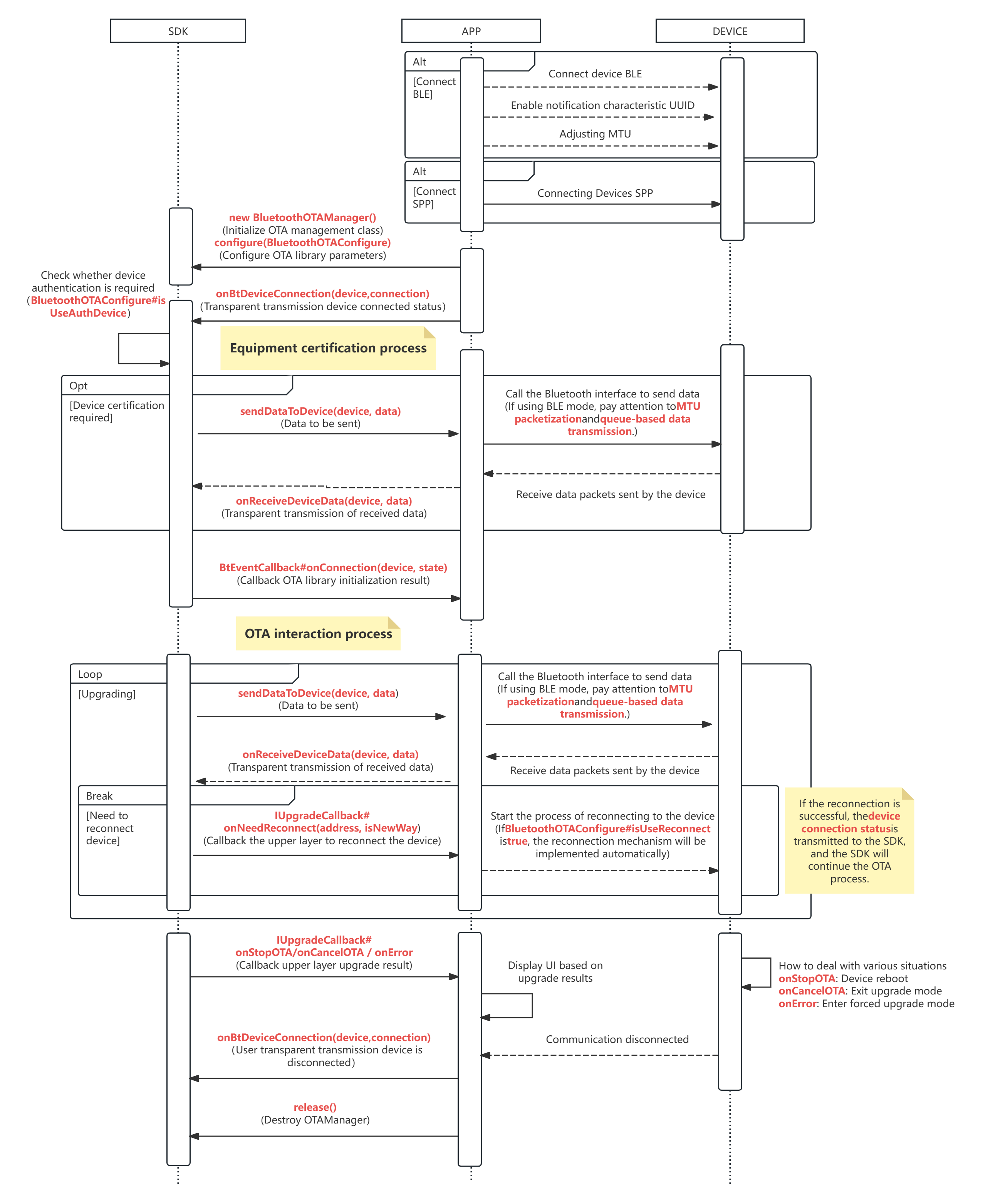
Initialize the implementation class of
BluetoothOTAManager, 2.1 Initialize OTA ManagerConfigure OTA library parameters(BluetoothOTAManager#configure), 2.2 Configuring OTA Parameters
Register the listener for the OTA library initialization status(BluetoothOTAManager#registerBluetoothCallback), 3.4 Bluetooth event callback
Transmit the connection status of
Device is connected(BluetoothOTAManager#onBtDeviceConnection), 2.1.3.1 Passing device connection statusWait for the result callback of
initialization success(BtEventCallback#onConnection)Query
Device Upgrade Status(BluetoothOTAManager#queryMandatoryUpdate)If
Device is in normal mode, executeStart Upgrade(BluetoothOTAManager#startOTA)If
Device is in forced upgrade modeIf you are upgrading, no additional processing is required, skip;(BluetoothOTAManager#isOTA() == true)
If it is not being upgraded, you need to upgrade the user “The device needs to be upgraded before use”, execute
Start Upgrade(BluetoothOTAManager#startOTA)
Wait for
upgrade event callback, and display the UI according to the callback event.IUpgradeCallback#onStartOTA, OTA process startsIUpgradeCallback#onProgress, OTA progress. Note: 0 — download resources; 1 — update firmwareIUpgradeCallback#onNeedReconnect, Notify the device to connect back. Note: The SDK library handles device connection back by default, and no additional processing is required. Unless a custom connection back device policy is usedIUpgradeCallback#onStopOTA, OTA completed. The device will restart and needs totransmit the device disconnect statusIUpgradeCallback#onCancelOTA, OTA is aborted. Note: Single backup OTA cannot be aborted; dual backup OTA requires device support to be actively canceled.IUpgradeCallback#onError, OTA exception. Display exception information according to 3.5 Error Code